Touch typing for ages 10 and up, for teachers and school leaders
Open your class and see who needs a look first.
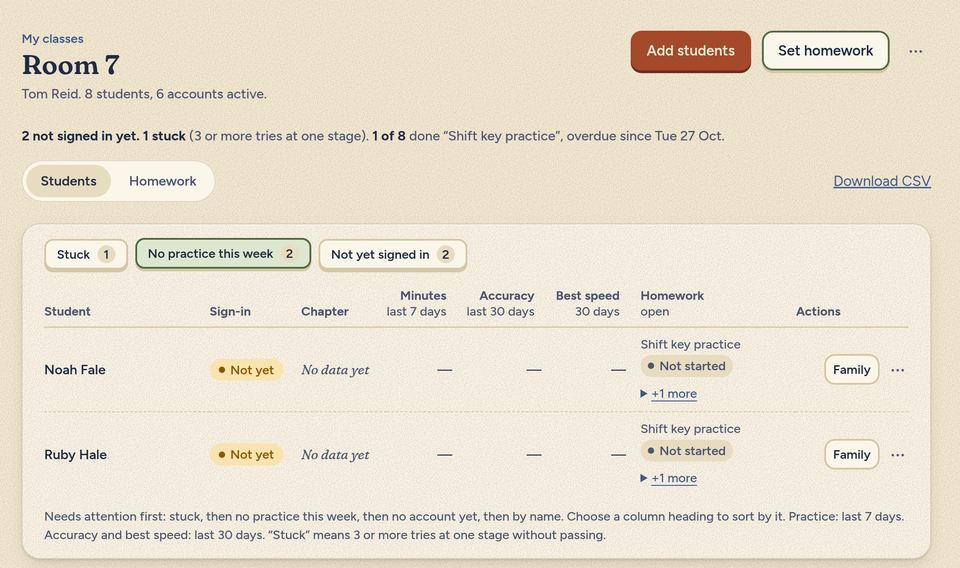
Pupils learn touch typing in short lessons of real words. Every class list starts with the pupils who are stuck, then those with no practice this week, then those who haven't signed in yet. Choose Stuck, No practice this week or Not yet signed in to see only them.
Teachers: homework and families Principals: the school view and privacy Staff sign in
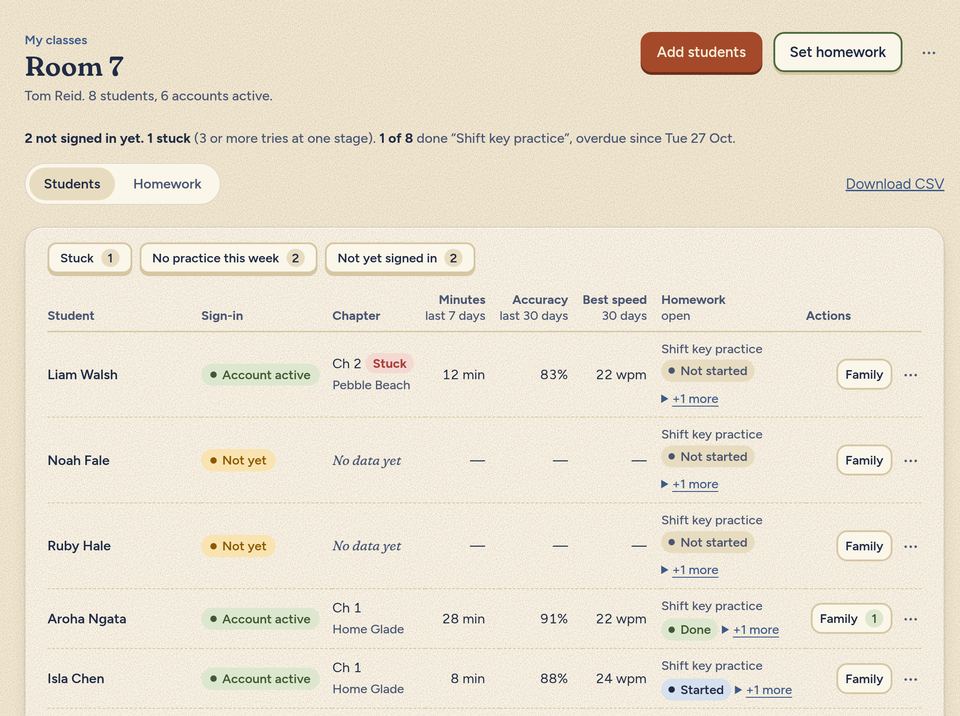
One calm list, sorted by who needs you
- "Stuck" means 3 or more tries at one stage without passing.
- A line above the list sums up the class: how many haven't signed in yet, how many are stuck, and how many have done the newest homework.
- Sort by Student, Sign-in, Chapter, Minutes (last 7 days), Accuracy (last 30 days) or Best speed. Needs attention first puts the list back.
- Each row shows the newest homework as Done, Started, Not started or Can't start yet. Older open homework folds away under "+1 more", with its due date.
- Add pupils by pasting their school emails, one per line, copied from your student management system such as KAMAR, eTAP, Edge or Hero. A preview marks each one New, Has an account, Skipped or Already in class before you add them. A class holds up to 60 pupils.
- There is no rank column. Teachers see only their own classes, and pupils never see classmates' results.
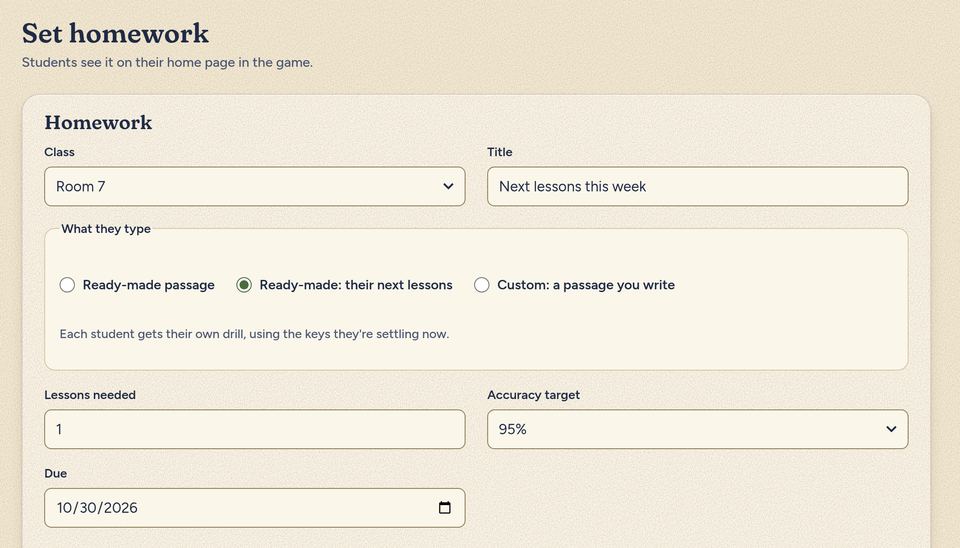
Set homework three ways
- Ready-made passage: five short passages with a New Zealand flavour, such as "Pavlova at the bach" and "Rain on Taranaki".
- Ready-made: their next lessons: the next lessons on each pupil's own path, so it fits every pupil.
- Custom: a passage you write: paste 10 to 1,000 characters. We check it and show what pupils will type. Macrons become plain vowels and curly quotes become straight ones.
Pick an accuracy target of 90, 95 or 97%, 1 to 5 lessons and a due date within 60 days. Before you set it, the screen says how many pupils can't start yet and which keys they still need.
When the first pupil starts, the passage, lessons and target lock. The title and due date stay editable, and each change goes in the school audit. Close homework stops new tries; the results stay.
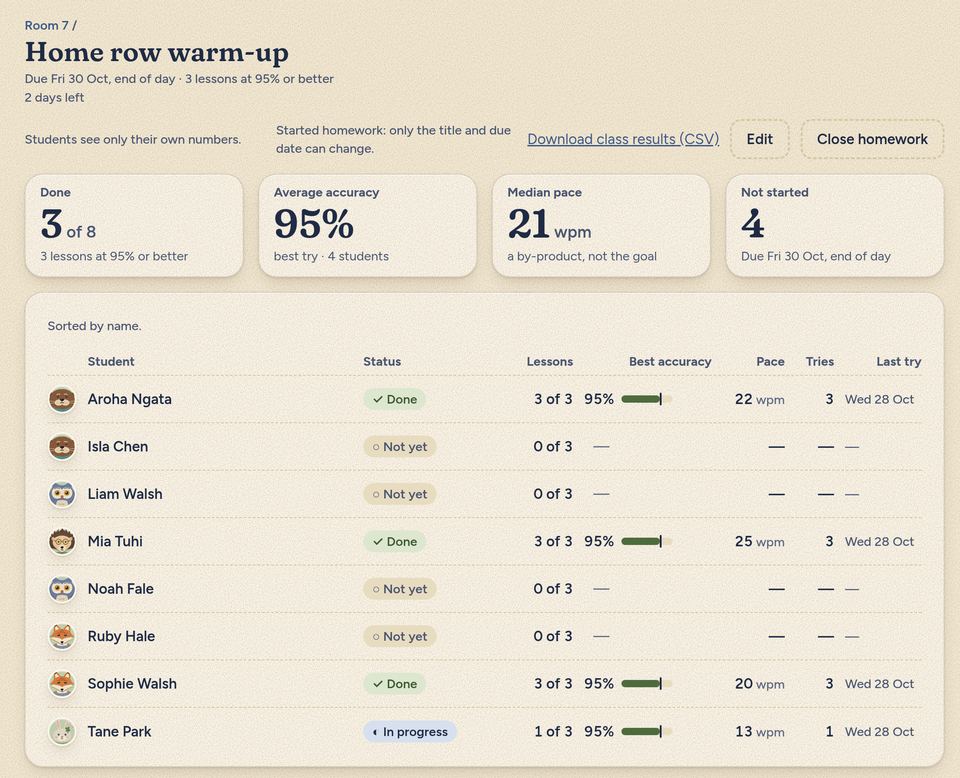
What each mark means
- ✓ Done
- Reached the target by the due date.
- ✓ Done late
- Reached the target after the due date.
- ◷ Late
- Past the due date and not done.
- ◐ In progress
- Some lessons at the target, more to go.
- ○ Not yet
- No tries yet.
- Tried, below target
- Tried, but not yet at the accuracy you set.
- 🔒 Not ready
- Still needs keys the passage uses. On the class list this reads "Can't start yet".
Above the list: how many are done, the average accuracy, the median pace and how many haven't started. Pupils see only their own numbers. Download class results (CSV) gives one column per homework.
A report for families, on its own page
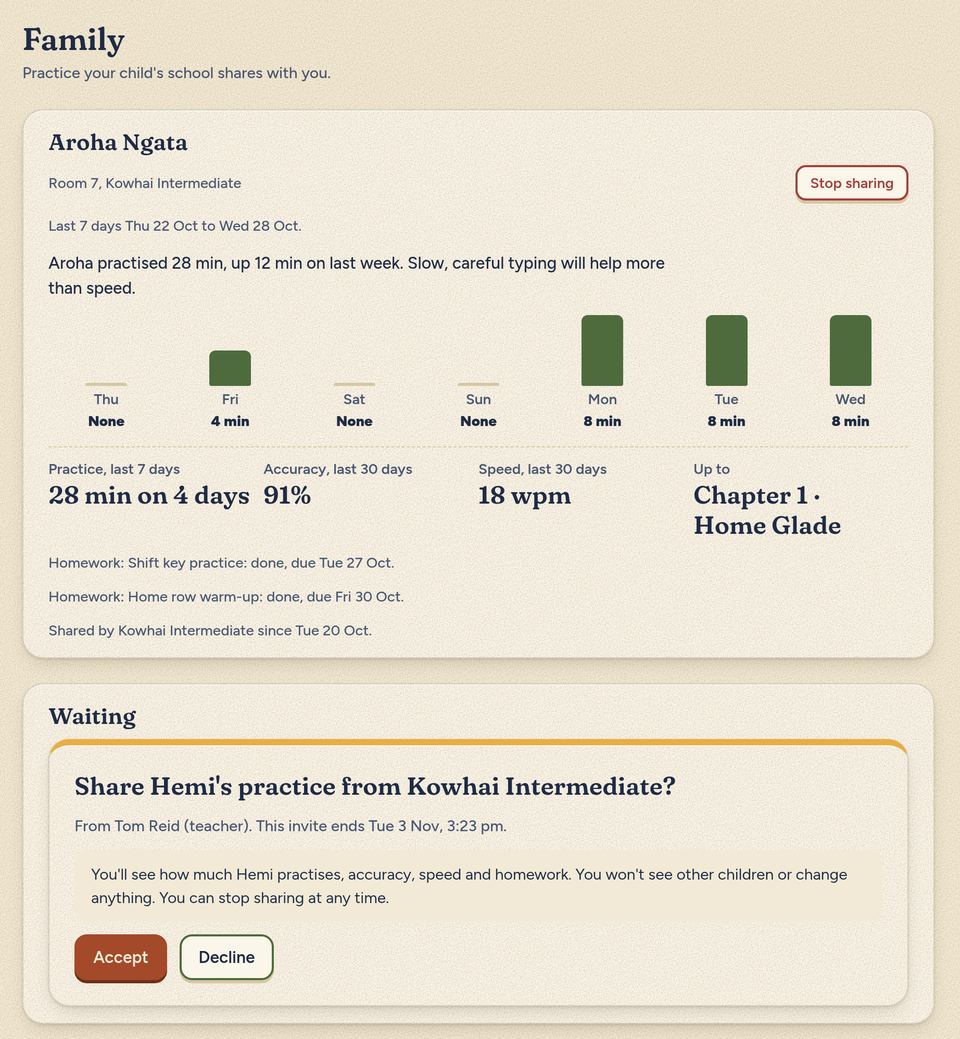
Parents sign in at the family page, not in the typing app, and see one report: their own child's last 7 days.
You invite a parent.
In the pupil's row choose Family, then Invite parent, and type the parent's email. The class teacher or a school admin can do this.
You check the name and the address.
The confirm step names the child and the exact email address, so the right parent sees the right child. Then choose Send invite.
You tell the parent.
We don't email invites yet. The parent signs in at the family page with that email address and sees the invite there. It ends after 7 days.
The parent accepts.
They see minutes practised each day, accuracy, speed, the chapter, your homework and one next step. They can't see other children or change anything, and they can stop sharing at any time.
The report stays until the parent stops sharing, the school ends it, or the pupil is no longer in any active class at the school. A school can switch on "Only admins can invite parents". The report prints cleanly from the browser.
For principals and school admins
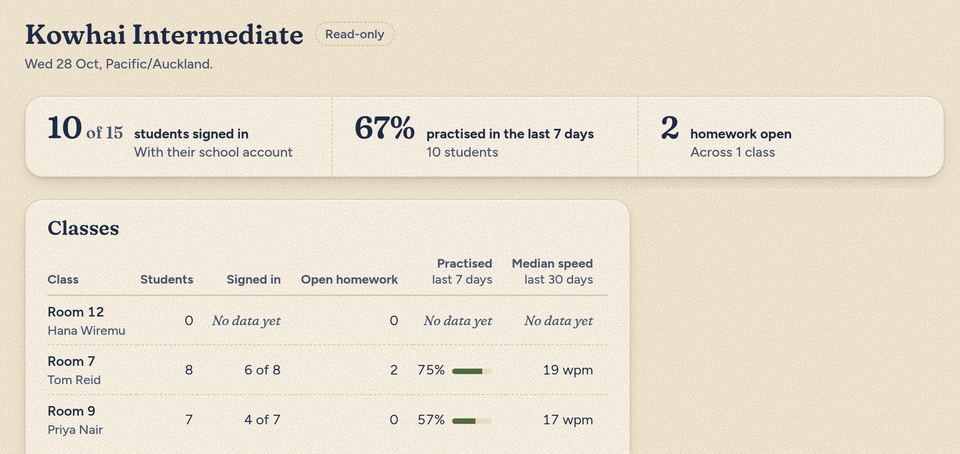
A principal sees the whole school, read-only. A school admin runs it.
- Dashboard: pupils signed in, who practised in the last 7 days and open homework, then one row per class with its median speed. Each pupil counts once. A principal can open any class and any homework, but can't change them.
- People: invite teachers, principals and admins by their school email, change roles and revoke waiting invites. Nothing is emailed: Copy a note for them gives you a sign-in line to send.
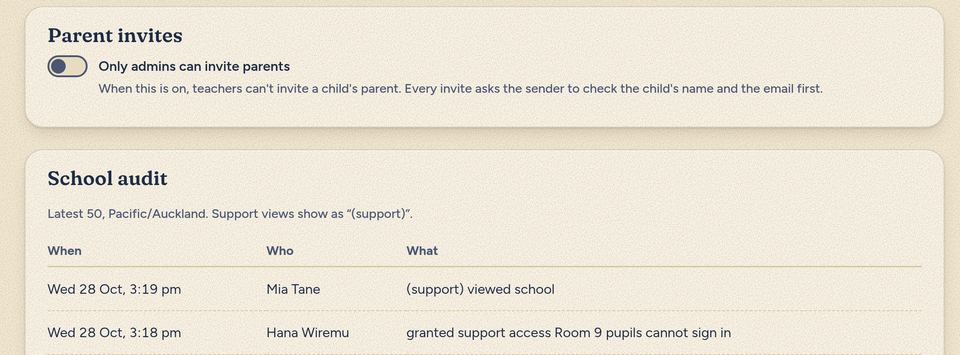
- Settings: "Only admins can invite parents", and support access (see privacy below).
- School audit: the latest 50 changes, with who did what and when: invites, role changes, classes, homework, parent invites, CSV downloads and every support view. Admins and the principal can read it.
- Class CSV: teachers and admins can download a class's results: name, stage, 30-day accuracy, best speed, last active and one column per homework.
How a school starts
We set up each school with you, by a written offer. There is no sign-up form.
Ask us for a written offer.
One offer for your school.
We set up your school.
We add your school's name and time zone and invite your first school admin by their school email.
Your admin signs in.
They sign in at staff sign-in with that email, accept, and invite your teachers and principal from People.
Teachers make classes.
Choose New class, then Add students, and paste the pupils' school emails.
Pupils sign in.
They open the app and sign in with that school email: with a code we send to it, or with their school Google or Microsoft account. Pupils with a school email need no cards or passwords. For a pupil without one, a teacher can print a login card with a resume code.
Privacy, in plain words
- Support access only when you open it. Our support staff see your school only when your school admin opens access for one named person, with a reason, for 60 minutes. Every view goes in the school audit, and the principal sees it. Emails and downloads stay hidden.
- There are no ads and no chat, nothing to buy, and no AI service sees pupils' work.
- Friends stay inside one school (pupils with pupils, staff with staff) and are added by request. A friend sees whether you typed today and any shared streak, never your accuracy or speed. There is no messaging.
- A school admin can delete a pupil's data at once from the class list: lessons, homework tries, friends and sign-ins. Backups of deleted data age out on a schedule, set out in the privacy policy.
What we keep
A pupil's name, school email, classes and typing results, and the key presses and timings from each lesson. No student number, date of birth, address or photos. Sign-in is run by Clerk, a US company, and typing results never go to it. There is no third-party analytics in the app, and we don't hold any privacy certification.
Not yet
- There is no printable class or school report; the dashboard and class pages are on screen only.
- Pupil data is not deleted automatically after a pupil leaves; a school admin deletes it.
Questions teachers ask
How do pupils sign in?
They open the app and sign in with the school email you added to your class, so they land in the right class. They can use a code we send to that address, which means they need to be able to open their school inbox, or a Google or Microsoft school account with the same address.
Do Chromebooks work?
It runs in a web browser on any computer with a physical keyboard, so a Chromebook should work, but we have not tested one yet. Tablets and phones won't work, because typing needs real keys. Use a standard US-style (ANSI) keyboard set to QWERTY, Dvorak, Colemak or Workman.
How much class time does it take?
Lessons are short. The daily goal starts at 5 minutes a day. Lessons use real words from the first one, and only keys the pupil has met.
What does it cost?
Each school gets its own written offer, and nothing is for sale inside the app.
Does it work with Google Classroom?
A teacher can import a class list and post homework to Google Classroom. Today this runs in Google's test mode, so only teachers we add by hand can connect. Grades are not sent back.
Does it match a curriculum?
It teaches keyboarding skills. Speed goals are the app's goals, not national standards, and we don't claim a curriculum match.